Network
Check boxes for the Network node and computers one level under the Network node are displayed, but disabled.
When scanning the network for computers running file and folder sharing services, the backup client agent will only detect computers which respond on port 445 within 3 seconds.
The account the backup client agent service is running as will need to have permissions for the network shares in order to browse to and access them.
When browsing the network, the backup source objects are enumerated in the context of the job's "Run As" user, and Windows credentials are retrieved and saved in the context of the "Run As" user.
Network Credentials
The backup client agent service uses stored Windows credentials to connect to and enumerate protected network shares.
Authentication failure when browsing
When expanding a protected network share that the agent can't authenticate to, the Network Credentials dialog is displayed so credentials can be entered. If the current user doesn't have permission to manage credentials, a read-only error message is displayed instead.
Credentials button
For the Network node and the computers and shares beneath it, a lock button is displayed in the grid that opens the Network Credentials dialog. A warning icon is overlaid on the button when the last attempt to browse that path failed.

Refresh button
For the Network node and the network folders beneath it (computers, shares, and sub-folders — never files or local items), a refresh button is displayed in the grid. It re-queries the path, displaying items that have since become available and clearing the missing/error indicators.

Network Credentials dialog
The Network Credentials dialog tests, saves, and removes the credentials the agent uses to connect to a protected network path.
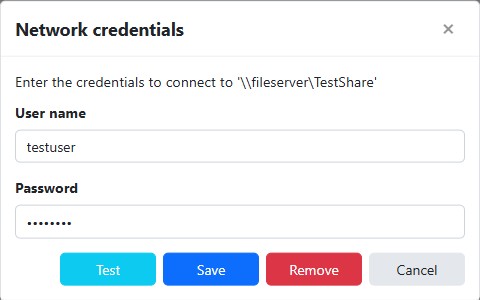
The dialog validates the entered credentials before contacting the agent:
- The user name is required, must be 256 characters or fewer, and must be in the format
user_nameordomain_name\user_name(at most one backslash, and it can't end with a backslash). - The password is optional and must be 256 characters or fewer.
Test
Validates the entered credentials and then tests connecting to the network path. On success, "Network connection successful" is displayed; otherwise the error is shown in the validation summary.
Save
Adds the credentials, or updates them if they already exist, and displays "Credentials saved successfully."
Warning
Saving overwrites the password already stored for this network path.
Remove
Removes the stored credentials after a confirmation prompt, and displays "Credentials removed successfully." The Remove button is disabled when no credentials are currently stored for the network path.
Warning
Removing deletes the credentials for this network path for all other backup jobs that may still use it.
Cancel
Closes the dialog without saving or removing any credentials.
Tip
Windows credentials are retrieved and saved in the context of the "Run as" user configured in the backup job's settings, so it's recommended to configure the "Run as" user before browsing the network and saving network credentials.
Note
Network credentials are saved scoped to the "Run as" user and are re-used by other jobs that run in the context of that user for each specific network path.
Note
When the dialog appears automatically while you are expanding a network path, saving credentials continues that expansion and lists the path's contents. When you open the dialog explicitly with the Credentials button and then add, update, or remove credentials, the network path is collapsed and is re-queried the next time you expand it, so the credential change takes effect on the next browse.
Credential requirements
Stored credentials must meet the following requirements to be used to connect and enumerate protected network shares:
- Credentials must be stored in the Windows Credential Manager vault of the job's "Run As" user (the user context the network is browsed under). When the job runs as the logged-in user, this is the interactive user's vault; when it runs as a specific user, this is that user's vault.
- Credentials must be stored as a "Generic" type.
- Credentials must be stored using the "Session", "Local Machine", or "Enterprise" persistence type.
- The target name must match the server (host) name or the full network path of the share, with or without the leading
\\— that is, any ofserver,\\server,server\share, or\\server\share.
Besides the Network Credentials dialog, credentials can also be saved to the Windows Credential Manager in any one of the following ways:
Using a graphical user interface:
a. Open Control Panel > (User Accounts) > Credential Manager.
b. Click "Windows Credentials".
c. Click "Add a generic credential".
d. Enter the "Internet or network address", "User name", and "Password", and then click OK.
Use a command line interface by opening an elevated Windows PowerShell and running the following commands:
TIP
To run PowerShell as the "Local System" (NT AUTHORITY\SYSTEM) account, [PsExec](https://docs.microsoft.com/en-us/sysinternals/downloads/psexec) can be used with the following command: ``` PsExec.exe -i -s powershell.exe ```a. Install the PowerShell NuGet Package Provider, if it's not already installed:
Install-PackageProvider -Name NuGet -Forceb. Install the CredentialManager PowerShell Module, if it's not already installed:
Install-Module -Name CredentialManager -Forcec. Add a generic credential:
New-StoredCredential -Type Generic -Persist LocalMachine -Target $computerName -UserName $userName -Password $passwordTIP
To remove stored credentials, run the following PowerShell command: ``` Remove-StoredCredential -Type Generic -Target $computerName ```
In order for the backup client service to be able to access the network resources during a backup, one or more of the following may be required:
- Use a Network Device as the target destination of a backup job.
- Save the network credentials in the Network Credentials settings of the job.
- Configure the job to Run As an account with permissions to access the network resources.
- Map the network path to a network drive.
- Use a symbolic link to a network path.
- Configure the backup client service to "Log On" and run as a different user account.